Connect to Amazon Web Services PrivateLink
| Redis Cloud |
|---|
Amazon Web Services (AWS) PrivateLink allows service providers to securely expose specific services without exposing the entire service provider and consumer VPCs to each other. With AWS PrivateLink, Redis Cloud exposes a VPC endpoint service that you connect to as a consumer from your own VPC. Traffic stays within the AWS network and is isolated from external networks.
You can use PrivateLink as an alternative to Layer 3 connectivity options like VPC peering and Transit Gateway.
AWS PrivateLink provides the following benefits:
- Improved Security: PrivateLink exposes the Redis cluster and database(s) as a unidirectional endpoint inside your consumer VPC, thereby avoiding exposing entire VPC subnets to each other and eliminating some possible attack vectors.
- Network Flexibility: PrivateLink enables cross-account and cross-VPC connectivity and can be configured even when the Redis Cloud VPC and your consumer VPC have overlapping CIDR/IP ranges.
- Simplified architecture and low latency: PrivateLink does not require NAT, internet gateways, or VPNs. It provides simplified network routing, without the need for a network load balancer between the application and the Redis database.
See Connecting to Redis Cloud with AWS PrivateLink vs. VPC Peering to learn more about the benefits of using AWS PrivateLink to connect to Redis Cloud.
Limitations
Be aware of the following limitations when using PrivateLink with Redis Cloud:
-
If you use Layer 3 connectivity options like VPC peering or Transit Gateway together with PrivateLink in the same consumer VPC, the database endpoints exposed through PrivateLink's private DNS will resolve to the VPC endpoint and not to the IPs associated with the Layer 3 connectivity options.
-
Your subnets must have at least 16 available IP addresses for the resource endpoint.
-
Some AWS regions do not support PrivateLink Resource Endpoints. See AWS VPC Lattice Pricing for a list of regions that support AWS PrivateLink Resource Endpoints.
-
Redis Cloud's PrivateLink implementation uses PrivateLink Resource Endpoints, which is based on Amazon VPC Lattice, so the VPC Lattice quotas apply. Currently, the following availability zones are not supported with Amazon VPC Lattice:
use1-az3usw1-az2apne1-az3apne2-az2euw1-az4cac1-az3ilc1-az2
We recommend avoiding these availability zones when creating your Redis Cloud database if you plan to use AWS PrivateLink.
Prerequisites
Before you can connect to Redis Cloud with an AWS PrivateLink VPC resource endpoint, you must have:
- A Redis Cloud Pro database and the Owner or Manager role for your Redis Cloud account.
- An AWS VPC with the following:
- A security group that allows ingress traffic to the following ports:
- The database port range (port 10000-19999)
- The Redis Cloud metrics port (port 8070), if desired
- Subnets in the same region as your Redis Cloud database.
- Settings to allow DNS resolution and DNS hostnames. See View and update DNS attributes for your VPC for more information.
- A security group that allows ingress traffic to the following ports:
- Permission to create and manage VPC endpoints or Service networks in AWS.
- AWS CLI version 2.32 or greater if using the AWS CLI.
Set up PrivateLink connection
To set up a connection to Redis Cloud with an AWS PrivateLink VPC resource endpoint, you need to:
- Associate the Redis Cloud Resource share with one or more AWS accounts.
- Add a connection from your consumer account using a VPC resource endpoint or a VPC Lattice service network.
Associate Redis Cloud resource share with an AWS account
In this step, you will associate the Redis Cloud resource share with an AWS Account.
-
From the Redis Cloud console, select the Subscriptions menu and then select your subscription from the list.
-
Select Connectivity > PrivateLink to view the PrivateLink settings. If you haven't set up AWS PrivateLink before, select Set up PrivateLink.
-
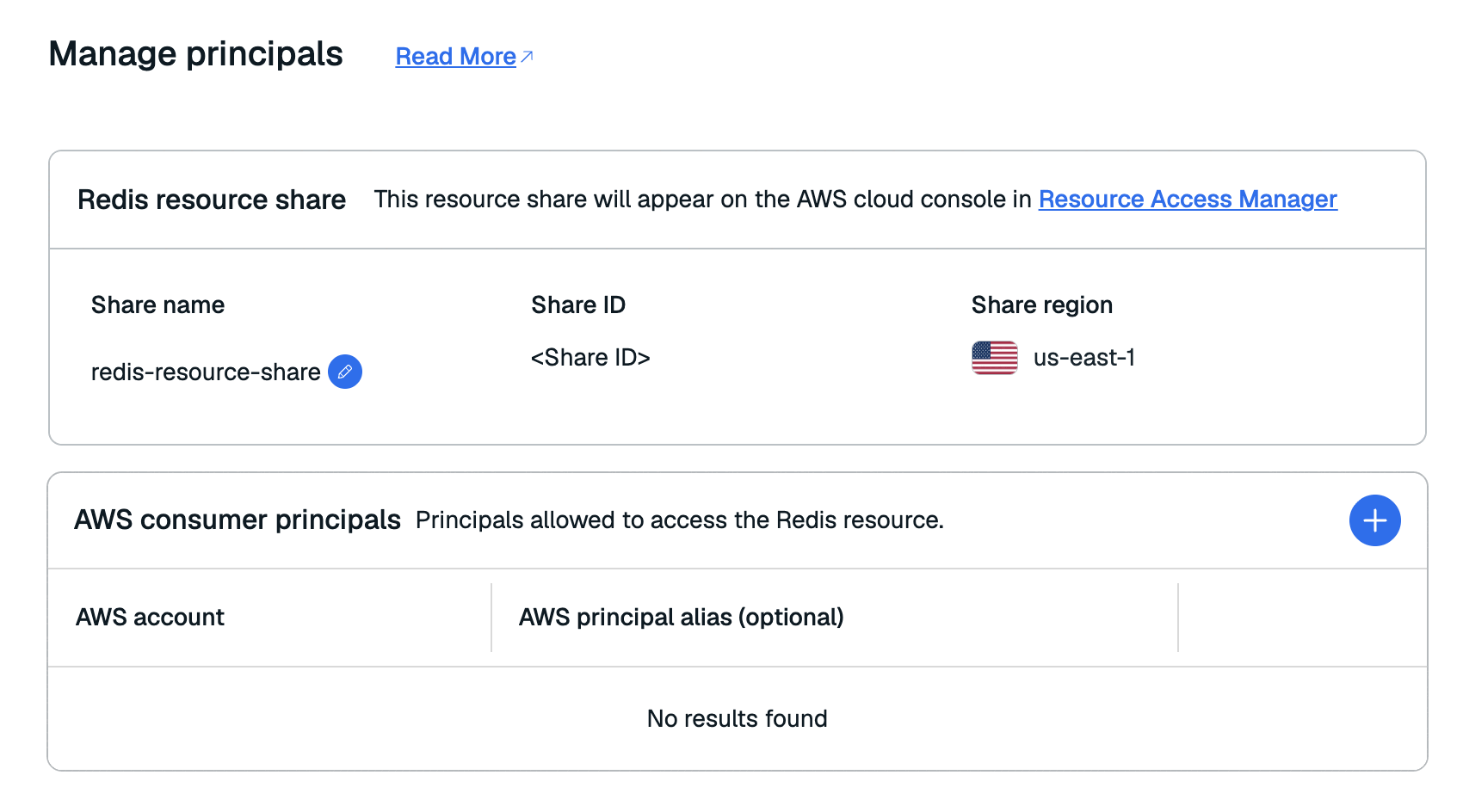
In the Resource Share section, select Manage Principals to open the Manage Principals window.

-
Select the Add button in the AWS consumer principals section to add a principal to the resource share.

-
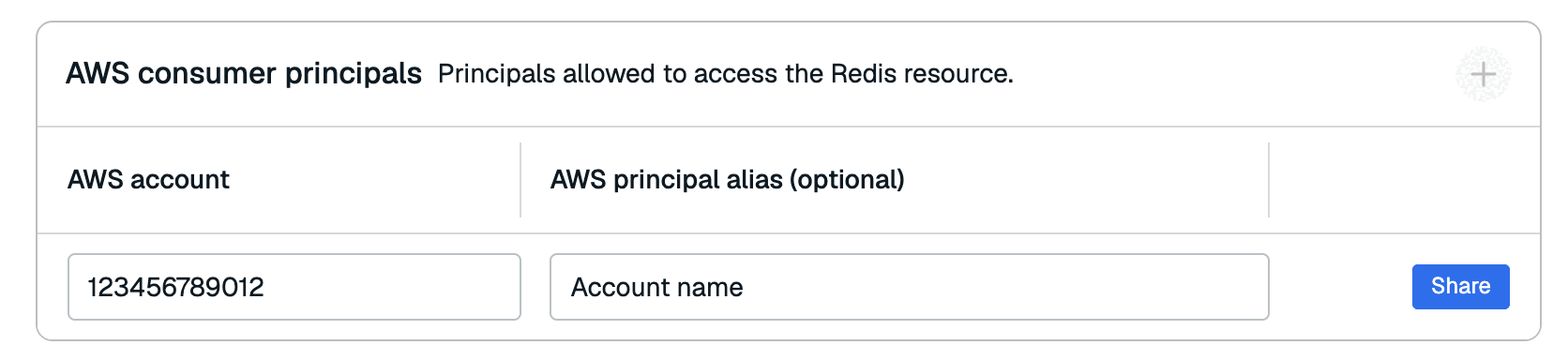
Enter the account's ID in the AWS Account field. You can also add an optional alias in the AWS principal alias field.
-
Select Share to share the resource share with the principal. The first resource share may take a few minutes.
-
After sharing the resource share with the principal, accept the resource share in the Resource Access Manager or copy the Accept resource share command and run it with the AWS CLI.
After you accept the resource share, the Redis Cloud console will show the principal as Accepted.
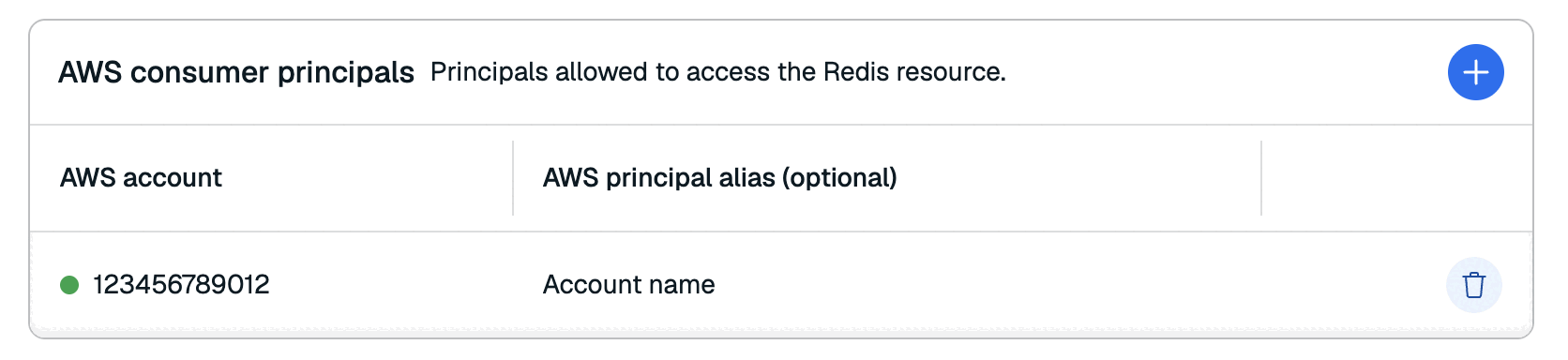
You can add additional principals to the resource share at any time.
Add a connection
In this step, you will add a connection from your consumer account using a VPC resource endpoint or a VPC lattice service network.
From the Connectivity > PrivateLink tab in your Redis Cloud subscription, open the Add connection section.
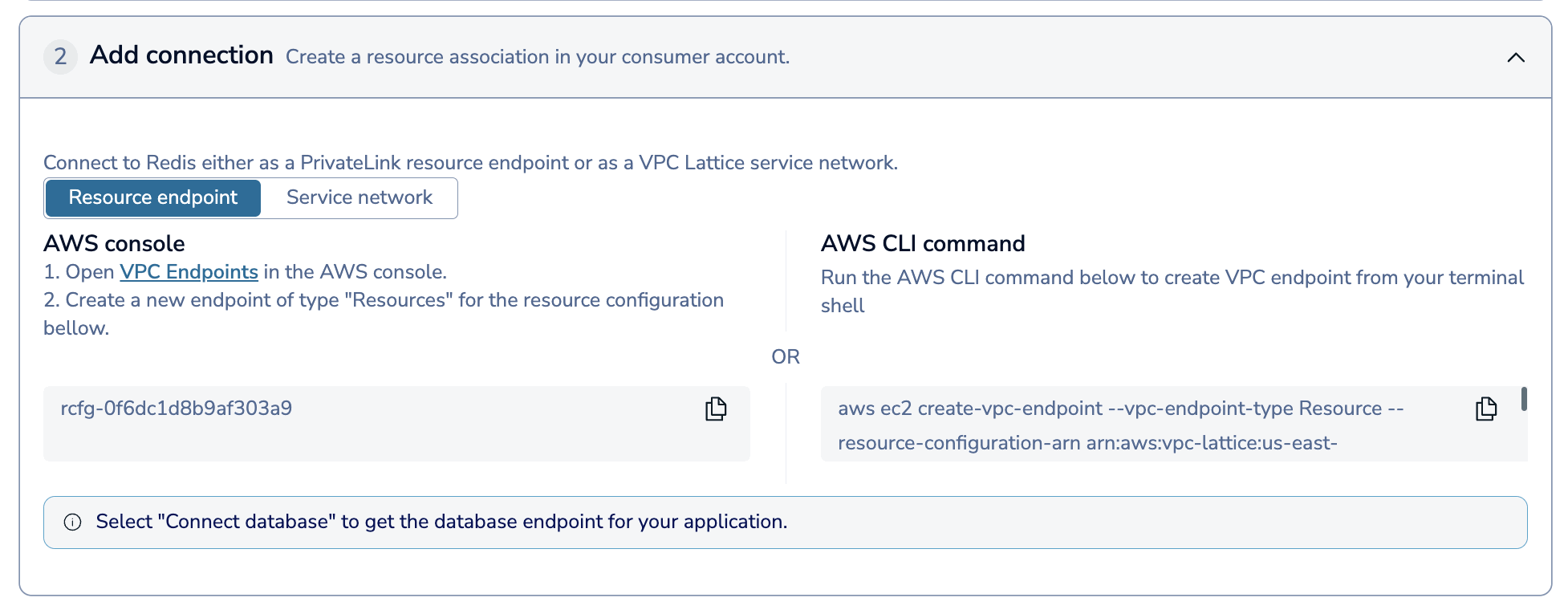
Here, choose whether you want to connect to Redis using a Resource endpoint or a Service network.
You can connect with a VPC resource endpoint through the AWS Console or with the AWS CLI.
AWS Console
Follow the guide to create a VPC resource endpoint in the AWS console with the following settings:
- Type: Select Resources.
- Resource configurations: Select the configuration with the same Resource Configuration ID as the one shown in the Redis Cloud console.
- VPC: Select your VPC from the list.
- Additional settings: Select Enable private DNS name and set Private DNS Preference to Verified domains only or Verified domains and specified domains.
- Subnets: Select the subnets to create endpoint network resources in.
- Security groups: Select any security groups you want to associate with the resource endpoint, including the security group that allows access to the necessary ports, as described in the prerequisites
AWS CLI
To use the AWS CLI to add a VPC resource endpoint, select Copy under the AWS CLI Command to save the command to your clipboard. Enter the saved command in a terminal shell to create the resource endpoint and replace the following parameters with your own values:
<vpc id>: The ID of your VPC<subnet ids>: The IDs of the subnets to create endpoint network resources in<security group ids>: The IDs of any security groups you want to associate with the resource endpoint, including the security group that allows access to the necessary ports, as described in the prerequisites
Connect to your database and metrics endpoint with PrivateLink
After you've connected to Redis Cloud with a VPC resource endpoint or a VPC lattice service network, you can find the endpoints for your databases and cluster metrics in the AWS UI by going to the Associations tab for your endpoint or service network and viewing the Private DNS entries. You will have one entry for each database and one entry for the metrics endpoint.
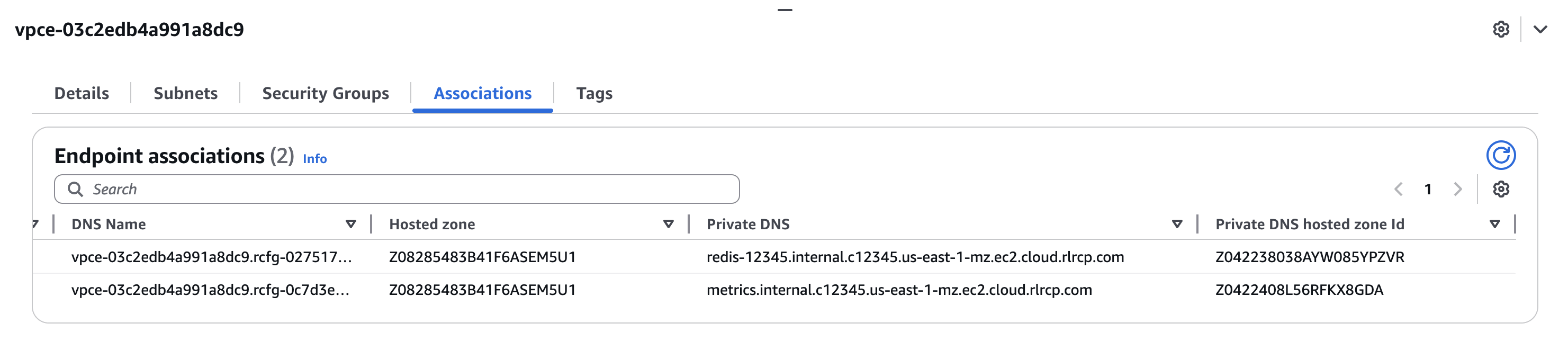
To view them on Redis Cloud, download the Discovery script from the Redis Cloud console and run it in your consumer VPC to discover the database endpoints.
The script returns a list of database endpoints that you can connect to from your consumer VPC.
[
  {
    "type": "metrics",
    "dns-entry": "<METRICS DNS ENTRY>",
    "private-dns-entry": "<METRIC PRIVATE DNS ENTRY>",
    "port": 8070
  },
  {
    "type": "database",
    "dns-entry": "<DATABASE DNS ENTRY>",
    "private-dns-entry": "<PRIVATE DNS ENTRY>",
    "port": 12345,
    "database_id": 1234567890
  }
]
You can connect to your database by using the database private-dns-entry and port from your consumer VPC. You can also connect to the metrics endpoint with services like Prometheus and Grafana by using the metrics private-dns-entry and port.
After you've connected to your database, you can view the connection details in the Redis Cloud console in your subscription's Connectivity > PrivateLink tab or by going to the connection wizard for your database. The private endpoint will point to the PrivateLink VPC resource endpoint or service network that you created.
private-dns-entry the discovery script returns. The public endpoint hostname is publicly resolvable and, by default, returns your database's address inside the Redis-managed VPC. That's correct behavior, and it's what VPC peering and Transit Gateway consumers rely on. For PrivateLink, that address is overridden only inside your consumer VPC, by the private hosted zone that AWS creates there. Resolving the public endpoint hostname from anywhere else — including from on-premises over Direct Connect or a VPN — returns the unreachable Redis-managed VPC address, not an error. Use the database's private-dns-entry from your consumer VPC, or see Connect from on-premises if you're connecting from outside it.Connect from on-premises
The private hosted zone that overrides the public endpoint hostname inside your consumer VPC doesn't extend to on-premises networks connected over Direct Connect or a VPN, even though they can reach the consumer VPC. The sections below describe other approaches that you can use instead.
Certificate verification decides which approach you need. Redis Cloud issues server certificates for its own hostnames, not for AWS-owned PrivateLink hostnames. If you use TLS, or expect to, your connection string must use the database's public endpoint hostname so that certificate verification succeeds, which means you need one of the two DNS-based approaches below. If you don't use TLS, you can connect directly with the resource endpoint's default DNS name.
Use the resource endpoint's default DNS name
AWS documents this as a supported way to reach a resource endpoint from on-premises, not a workaround:
DNS requests from outside the VPC still return the private IP addresses of the resource endpoint's network interfaces. You can use these DNS names to access the resource from on premises, as long as you have access to the VPC that the resource endpoint is in, through VPN or Direct Connect.
Find the resource endpoint's default DNS name in the AWS console, under the endpoint's details, and use it directly in your connection string. This requires no DNS configuration on either side, but it doesn't work with TLS, because the hostname doesn't match your database's certificate.
Add a CNAME to the public endpoint hostname
If you want to keep using the database's public endpoint hostname, including with TLS, create a CNAME record in your own DNS that points the hostname to the resource endpoint's default DNS name. This needs one DNS record and no changes on the AWS or Redis Cloud side.
Add a CNAME record, not an A record to the resource endpoint's network interface addresses. Those addresses aren't guaranteed to stay the same if the resource endpoint is recreated.
Use a Route 53 Resolver inbound endpoint
For a fully AWS-native setup, create a Route 53 Resolver inbound endpoint in the consumer VPC and configure conditional forwarding from on-premises for your database's public endpoint domain. This also works with TLS, since it resolves the same public endpoint hostname your certificate expects. See Integrating AWS Transit Gateway with AWS PrivateLink and Amazon Route 53 Resolver for the reference architecture.
Route 53 Resolver endpoints are billed per elastic network interface per hour, with a two-interface minimum. See Amazon Route 53 pricing. This option costs more than a CNAME record, so it suits consumers of several PrivateLink services rather than a single database.
Disassociate connection
To disassociate a PrivateLink connection:
-
Go to the Connectivity > PrivateLink tab in your Redis Cloud subscription.
-
In the Connections section, select Disassociate button next to the connection you want to disassociate.
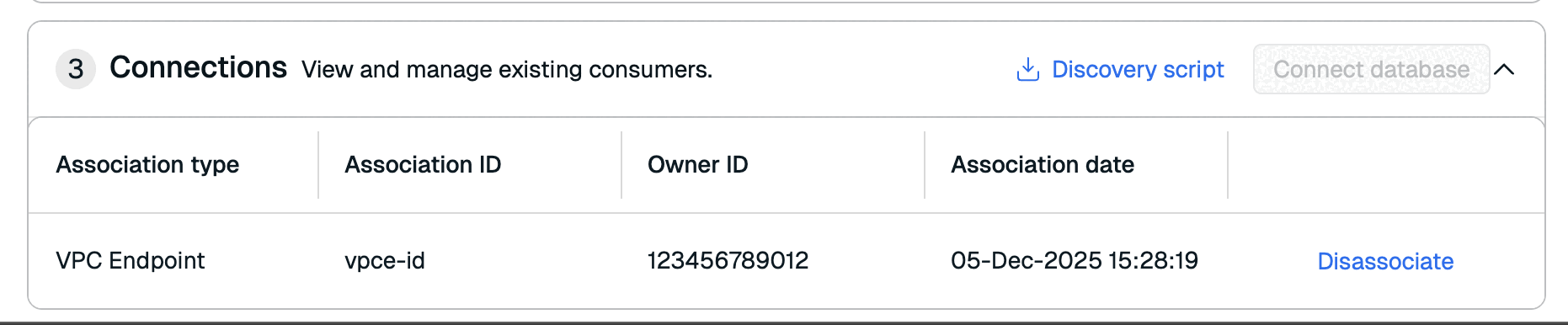
-
Select Disassociate VPC endpoint or Disassociate service network to confirm.
After disassociating the connection, you can delete the VPC resource endpoint or service network in the AWS console.
Remove PrivateLink
To remove PrivateLink as a connectivity option from your database:
-
Go to the Connectivity > PrivateLink tab in your Redis Cloud subscription.
-
Select More Actions > Remove Private Link.
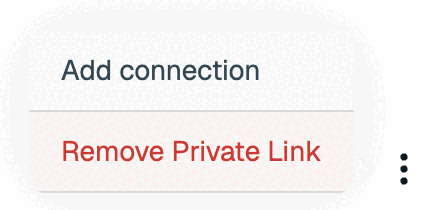
-
Select the Remove Private Link button to confirm.
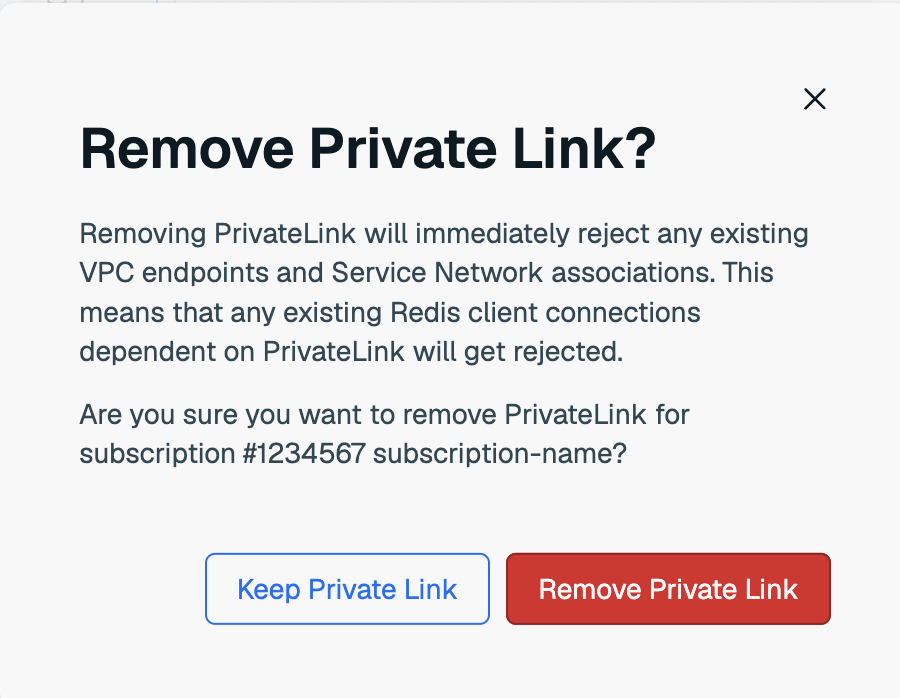
All connections that depend on PrivateLink will be immediately rejected as when you remove it from your subscription.